Can’t create a snapshot in Proxmox? Fix it by converting RAW disks to QCOW2
If Proxmox says „The current guest configuration does not support taking new snapshots,“ a RAW disk is almost always the reason. Here’s the fix, with a real example: VM 102 (MicroGuard) on node pve2.
Why bother?
RAW disks don’t support snapshots — that quick „save the current state“ feature in Proxmox. QCOW2 disks do. This post walks through converting a VM’s disks from RAW to QCOW2 live, with zero downtime, using a real VM as an example.
What you’ll need
- Access to the Proxmox web UI (or SSH to the node as root).
- Root/admin privileges.
- A target storage that supports QCOW2 and snapshots — typically a „Directory“ or „NFS“ type storage (in this example,
DORADO-60TB-2).
Step 1: Open a console
In the Proxmox web UI, click the node your VM runs on (here, pve2), then click the „>_ Shell“ button at the top. Or connect over SSH:
ssh root@pve2Step 2: Check the VM’s current disk setup
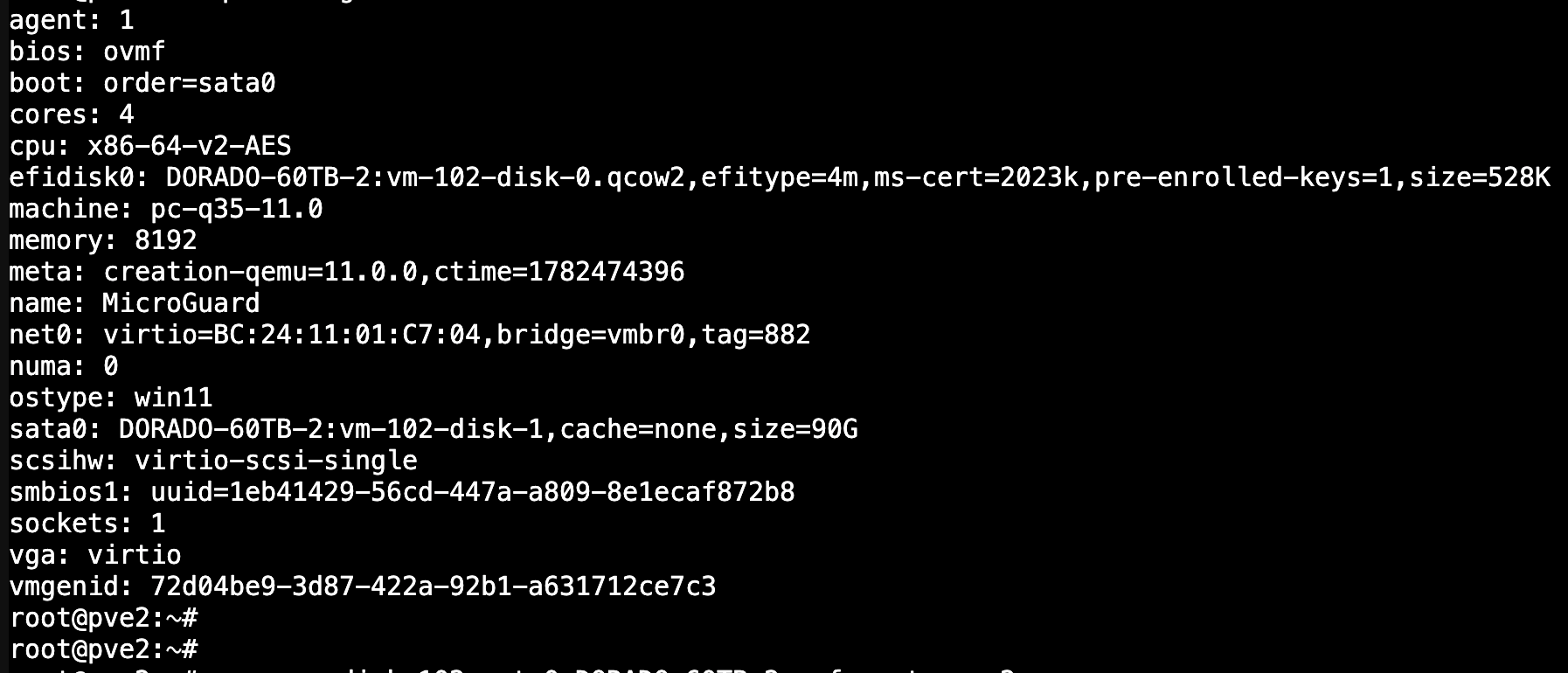
Run (replace 102 with your VM’s ID):
qm config 102Look at each disk line (sata0, scsi0, efidisk0…) and the filename:
- Ends in
.qcow2→ already fine, nothing to do. - No extension (e.g.
vm-102-disk-1) → it’s RAW and needs converting.
On VM 102, the EFI disk was already qcow2, but the main disk sata0 was RAW:
Step 3: Convert the RAW disk to QCOW2 — live, no downtime
No need to power off the VM. Proxmox copies the disk in the background, then transparently switches over — and you don’t need the command line for it. In the Hardware tab, click the disk, then click „Disk Action“ at the top → „Move Storage“. Pick a target storage and set „Format“ to „QEMU image format (qcow2)“:
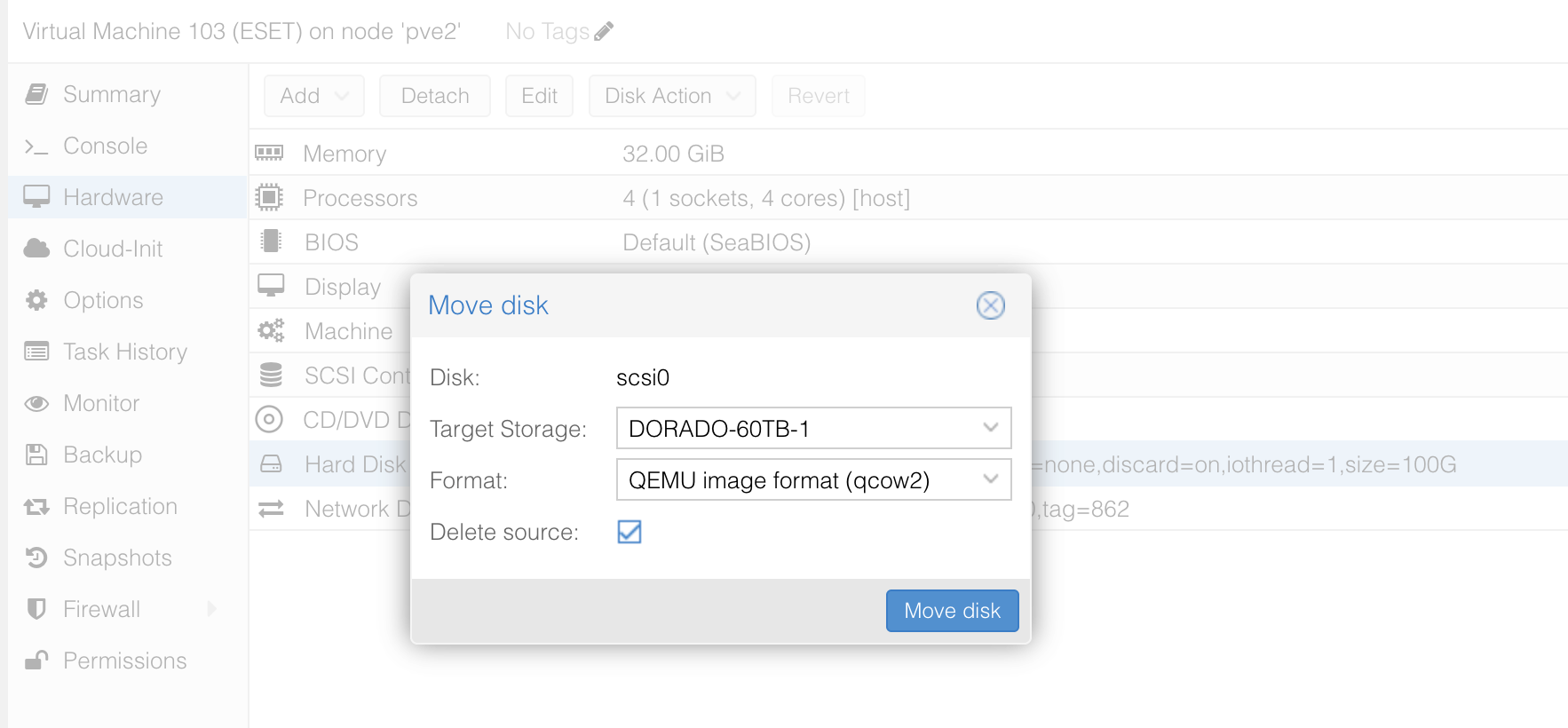
efidisk0 line) and it’s RAW, convert it the same way. It’s the disk people forget most often — and without it, snapshots won’t work for the whole VM, even if every other disk is fine.Prefer the command line?
Same operation, via SSH. The command looks like:
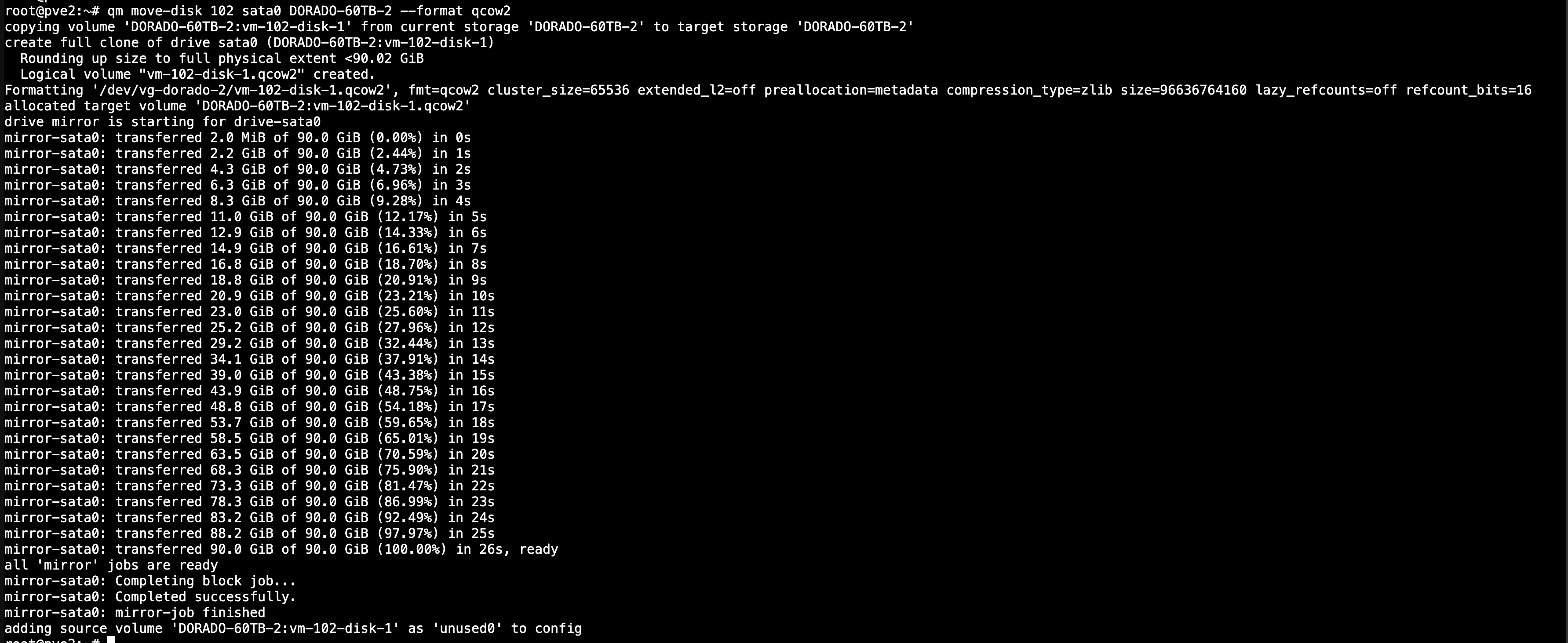
qm move-disk <VMID> <DISK> <TARGET_STORAGE> --format qcow2For VM 102’s sata0 disk specifically:
qm move-disk 102 sata0 DORADO-60TB-2 --format qcow2Proxmox streams live progress in the terminal while the VM keeps running:
Step 4: Verify the result
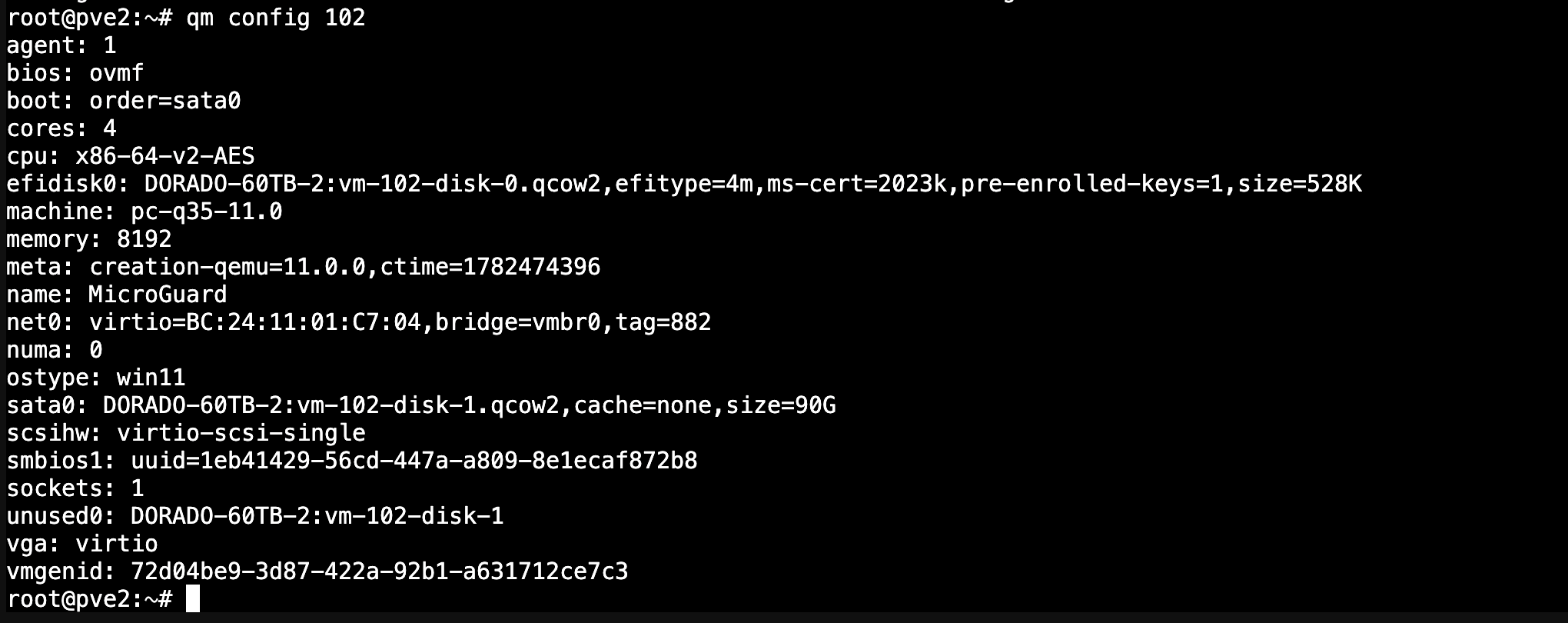
qm config 102sata0 now ends in .qcow2. Proxmox keeps the old RAW disk around as unused0 for safety — it isn’t deleted automatically:
Step 5: Reboot the VM and confirm everything works
Before deleting the old disk, reboot the VM (shutdown + start) and make sure it comes up cleanly — login, apps, networking. Only once you’ve confirmed that is it safe to remove the old copy.
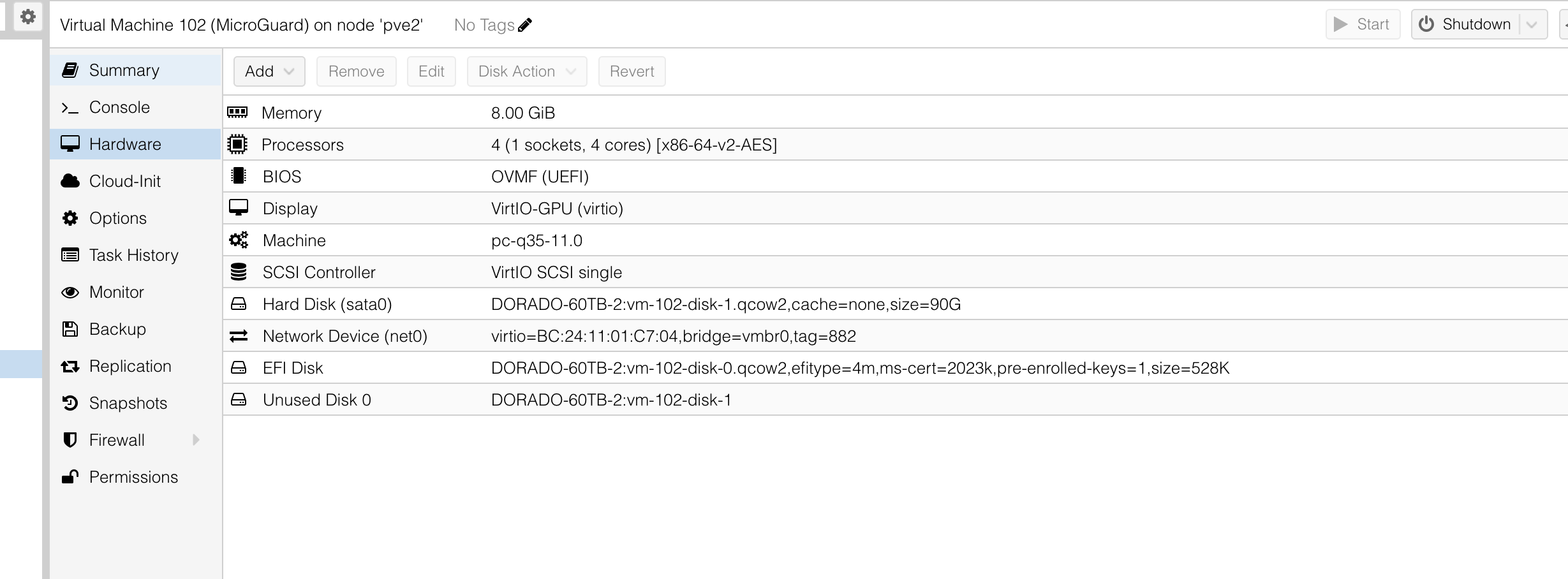
Step 6: Delete the old, unused disk
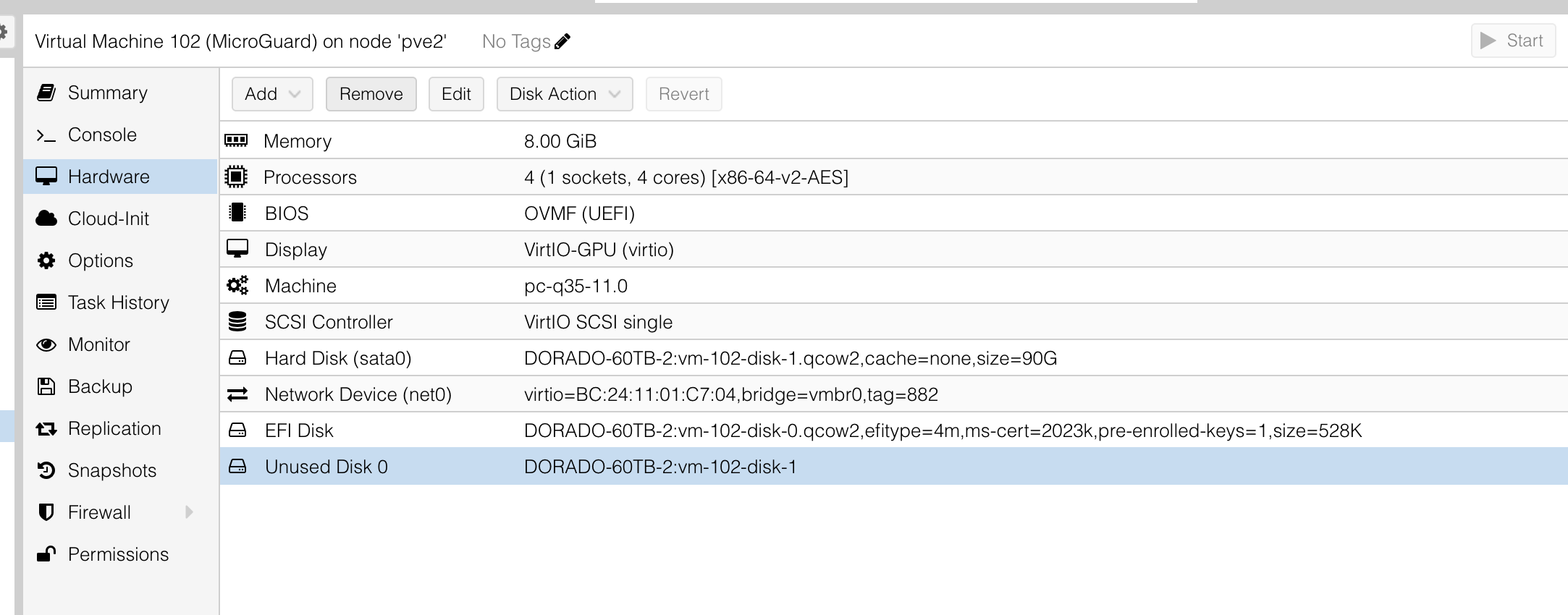
In the Hardware tab, click the „Unused Disk 0“ row to select it, then click „Remove“ at the top:
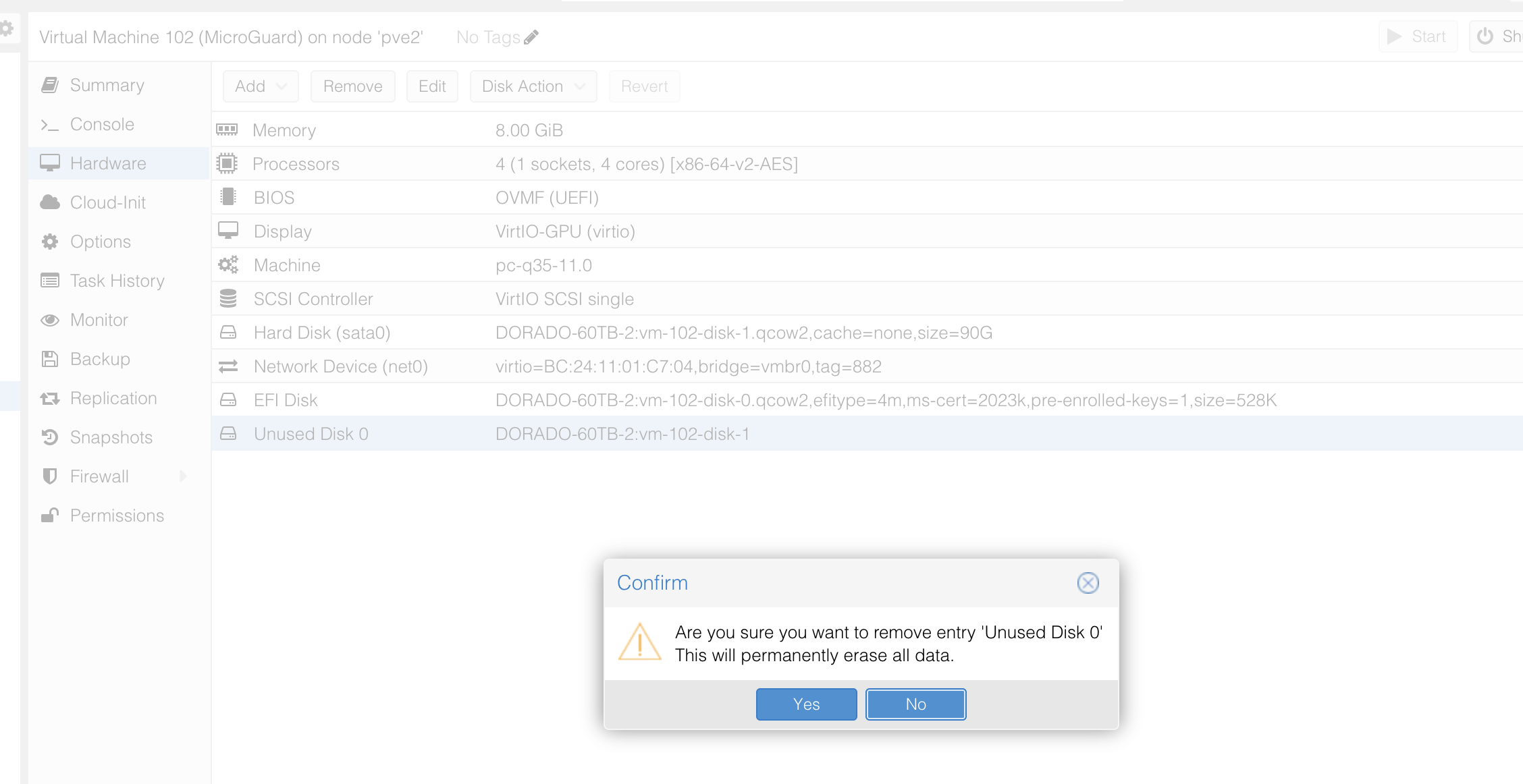
Proxmox asks for confirmation — the disk is only physically deleted once you click „Yes“:
The same thing can be done from the CLI:
qm unlink 102 --idlist unused0Step 7: Confirm snapshots now work
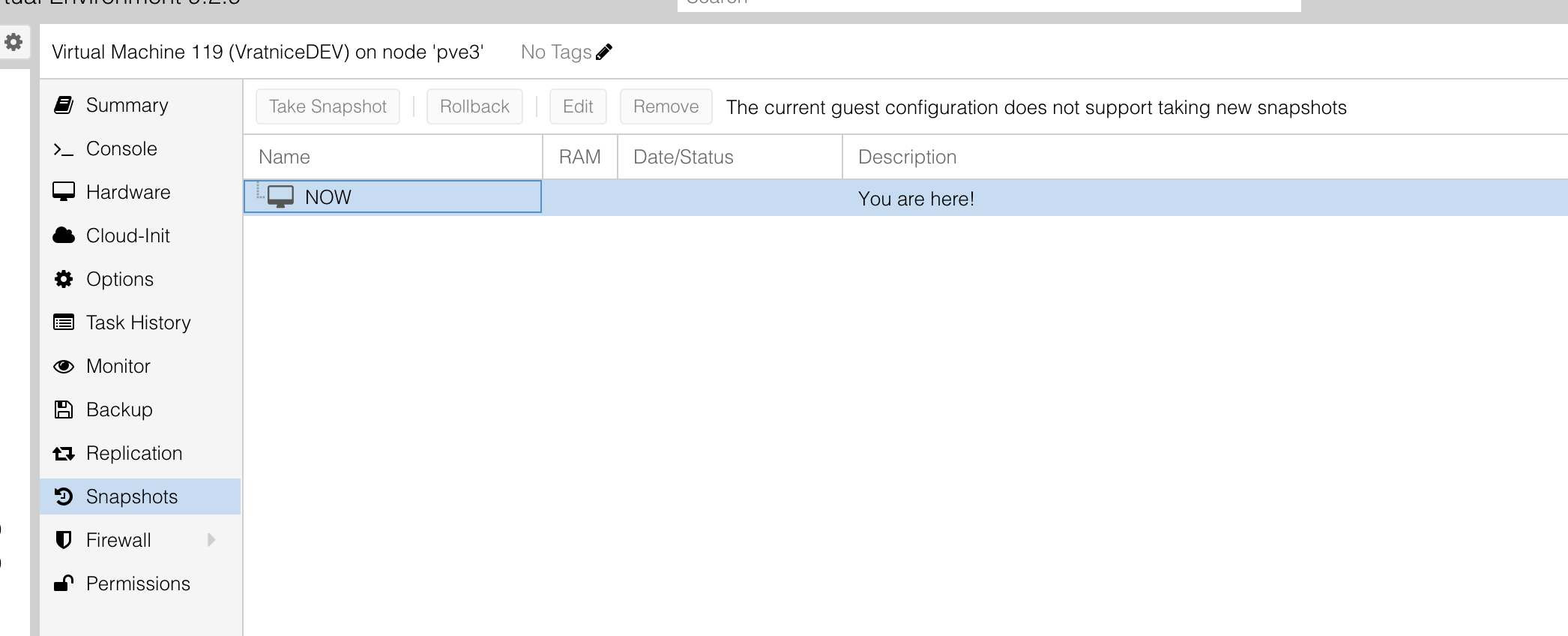
Go to the VM’s „Snapshots“ tab and try „Take Snapshot.“ It should work without any error.
Common issues
Still get „The current guest configuration does not support taking new snapshots“ after converting? Some disk is still RAW somewhere — go back to Step 2 and double-check every single disk. The EFI disk is the usual culprit.
move-disk complains the storage doesn’t support that format? Your target storage needs to be a Directory/NFS/CIFS type. LVM, LVM-thin, ZFS, and Ceph storages don’t use QCOW2 — they have their own native snapshot mechanisms instead.
„Not enough space“? The target storage doesn’t have enough free room for the copy. Check under Datacenter → Storage.
TL;DR — full workflow for one VM
qm config <ID>
qm move-disk <ID> <disk> <STORAGE> --format qcow2   # for every RAW disk, EFI included
qm config <ID>                                        # verify
qm shutdown <ID> && qm start <ID>                     # reboot, confirm it boots fine
qm unlink <ID> --idlist unusedX                        # clean up the old copy