Veeam – Access Denied Error After Migrating Configuration from MFA-Enabled Server
After successfully migrating from an old Veeam server to a brand new one, everything looks great, but after restarting the new server, an error occurred when logging into the Veeam Backup and Replication console.
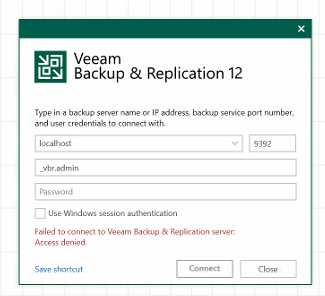
The customer had set up the old server so that when logging into the Veeam console, it required multi-factor authentication, and that was the fundamental problem. The configuration was not transferred to the new server, preventing login to the console.
How to get out of this? It’s quite simple. If you have PostgreSQL, just disable MFA in the database.
save this query like „mfa.sql“
UPDATE public.Options set value = ‚False‘ where name = ‚GlobalMFA‘;
and run it with
„C:\Program Files\PostgreSQL\15\bin\psql“ -d VeeamBackup -U postgres -f c:\Users\_vbr.admin\Desktop\mfa.sql
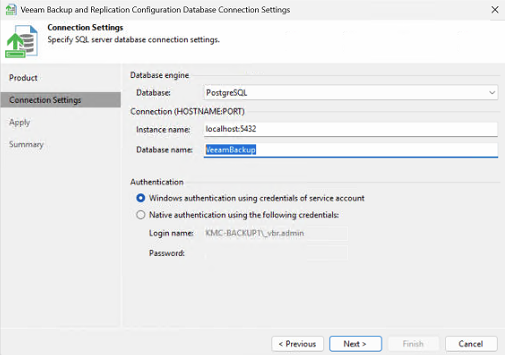
where -d is the name of the db in my case „VeeamBackup, if you dont know the name of the db, you can find it with Configuration Database Connection Settings tool.
Now are you able to login to VBR console 🙂